 Log in
 Designer – Import Records
The Import Records tool allows you to upload and update data in your IDpack projects. This feature supports CSV files, TXT files, or direct data input through a secure URL. Proper configuration is required to ensure accurate and reliable imports.
Important Warnings
- Backup First Misuse of this tool can permanently damage project data. Always use Export Records to create an XML backup before proceeding.
- Test First Create a temporary project by cloning an existing one, keep it inactive, and perform test imports before applying changes to an active project.
Import Options
- Import Mode Defines how existing records are handled
- Update Updates existing records and adds new ones
- Overwrite Deletes all existing records and imports new data
- Skip Leaves existing records unchanged when a match is found
- Field Separator Select the delimiter used in the CSV file
- Comma
- Semicolon
- Colon
- Tabulation
- Field Enclosure Defines how text values are enclosed
- Quotation mark
- Apostrophe
- None
- Import Color Code Mode Defines how Color Codes are interpreted
- Numeric Uses the Color Code number from 1 to 15
- String Uses the Color Code description such as Media
- Skip First Line Ignores the first row when it contains column headers
- First Column Contains ID If unchecked, IDpack automatically assigns ID numbers starting at 149786
Import Methods
CSV Text
Paste CSV formatted data directly into the input field.
CSV File
Upload a CSV or TXT file that contains the data to import.
CSV URL
Import data from an external CSV or TXT file using a secure URL. The URL must meet the following requirements:
- HTTPS with TLS version 1.2 or higher
- No redirection allowed
- HTML response code must be 200
- Connection timeout of 10 seconds
Authentication Choose between Anonymous or Basic Authentication. Anonymous access is supported but not recommended for security reasons.
IDpack sends a JSON request for validation and logging using the following header
Content Type application json charset utf 8
{
    "app": "IDpack",
    "action": "records_list",
    "version": "3.2.40",
    "organization_key": "your_organization_key",
    "project_key": "your_project_key",
    "user_key": "your_user_key"
}
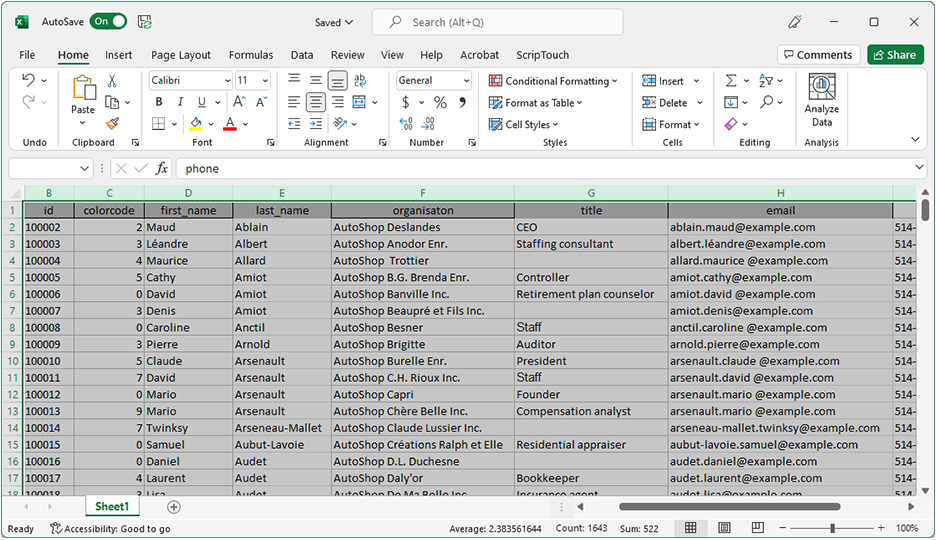
Import from Access, Excel or Google Sheets
To import data from spreadsheet software:
- Select the required cells and copy the data
- Ensure the column order matches the Import Records format
- Paste the data into the CSV Text field
- Select Tabulation as the field separator
- Click Start Importation
Data Format Guidelines
- Country Code Use ISO 3166 alpha 2 with two uppercase letters
- Gender Code Use ISO IEC 5218 numeric values
- Language Code Use ISO 639 alpha 2 with two uppercase letters
- All other columns are ignored during import
Performance and Tips
For very large imports, split the data into smaller batches if errors occur. The system supports imports exceeding 200000 records with minimal delay. A batch of 2000 records typically completes in under five seconds.
Rows that are not correctly formatted are skipped automatically. A report is provided after the import completes so skipped rows can be corrected and imported again.
Re importing the same data does not create duplicate records. This ensures consistency even when multiple import attempts are required.